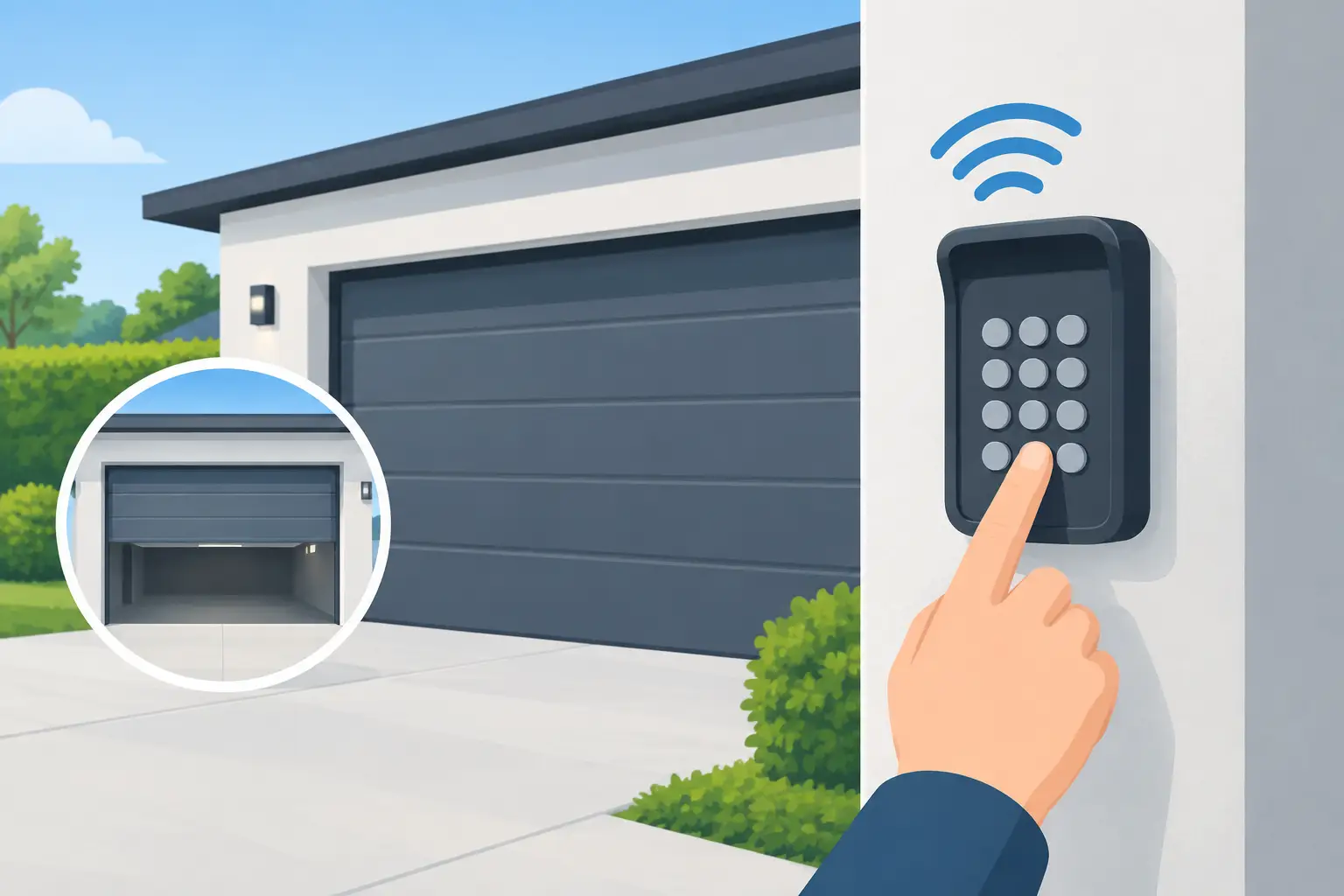
A wireless garage door keypad should make arriving home easier, not leave you outside in rain, snow, or a Chicago cold snap. If you are searching for how to program wireless keypad access, the right process depends on the opener brand, its age, and whether the keypad is universal or made for that specific opener. Most programming jobs take only a few minutes when the equipment is compatible and the opener is operating correctly.
Before you begin, confirm that the garage door is fully closed and the area around it is clear. Programming a keypad involves activating the opener’s receiver, so you do not want a vehicle, person, or stored item in the door’s path if the door moves unexpectedly.
What You Need Before Programming
Start with a fresh battery in the keypad. A weak battery can light up the keypad but still fail to send a reliable signal to the garage door opener. Check that the keypad is installed within range of the garage and that its cover, if it has one, is not interfering with the buttons.
You will also need access to the garage door opener motor unit. This is the unit mounted on the ceiling, usually near the center of the garage. Locate its Learn, Program, Smart, or Set button. The label and button color vary by manufacturer, and the button may sit behind the light cover or near the antenna wire.
Keep the opener model information nearby if possible. It is commonly printed on the side or bottom of the motor housing. That detail matters because older openers, newer rolling-code systems, and universal keypads do not all follow the same timing or button sequence.
How to Program a Wireless Keypad With a Learn Button
Most modern residential garage door openers use a Learn button. This process generally works with compatible keypads, but always follow the keypad manufacturer’s instructions when they differ.
First, choose a personal identification number, or PIN, that you can remember but that others cannot easily guess. Avoid your street address, birth year, or a simple sequence such as 1234. A four-digit PIN is common, although some models allow a longer code.
Next, press and release the Learn button on the opener motor. Do not hold it down. Holding it for too long can erase remote controls and existing keypad settings on some units. After pressing the button, an indicator light usually turns on or begins blinking. You typically have about 30 seconds to complete the next step.
At the keypad, enter your new PIN and press the Enter, Send, Program, or Up/Down button, depending on the model. The garage door opener lights may flash, click, or cycle to confirm it received the code. On some keypad models, you may need to enter the PIN and press Enter a second time before the opener confirms programming.
Wait a few seconds, then test the keypad from outside the garage. Enter the PIN and press Enter. Stay clear of the moving door while you test it. If the door opens and closes normally, test the code one more time after the opener’s Learn mode has ended. This confirms the keypad stored the code rather than simply responding during setup.
If Your Keypad Has a Brand or Opener Selection Step
Universal wireless keypads are useful when you are replacing a lost keypad or managing a property with different opener brands. They often require an additional step before you press the opener’s Learn button. You may need to select a manufacturer code, choose a color-coded Learn button type, or press a program key until the keypad light flashes in a specific pattern.
This is where many programming attempts fail. A universal keypad can look correct, mount correctly, and still be incompatible with an older opener or a particular rolling-code system. Do not guess at the manufacturer setting. Check the keypad instructions and the opener model number first. A wrong selection may make the door respond once during setup but fail during normal use.
Programming an Older Garage Door Opener
Older garage door openers may use DIP switches instead of a Learn button. These small switches are usually located inside the opener motor unit and inside the remote or keypad. The switch positions on the keypad must match the switch positions on the opener exactly.
Turn off power to the opener before opening its housing or touching internal components. Set each switch in the keypad to match the corresponding switch in the opener, replace the covers, restore power, and test the keypad. If the door still does not respond, inspect the switch positions again. One reversed switch is enough to prevent communication.
Older systems can be less secure than modern rolling-code openers. If you manage a commercial site, rental property, or an older home with a DIP-switch system, it may be worth discussing an opener upgrade. The right solution depends on the door’s use, access needs, and budget, but updated controls can provide better security and more dependable daily operation.
Common Wireless Keypad Problems and What to Check
When a keypad will not program, the issue is often simple. Start with the battery, then check compatibility and programming timing before assuming the opener has failed.
A keypad that does not light up, gives a dim display, or works only occasionally usually needs a new battery. If the keypad lights up but the opener does not react, make sure you pressed and released the Learn button rather than holding it. Then repeat the process promptly, since the receiver’s programming window is short.
If the opener lights flash but the door does not move, the problem may not be the keypad. Check the photo-eye safety sensors near the bottom of the tracks. If their lenses are dirty, misaligned, or blocked, the door may refuse to close. Also check whether the wall control has a lock or vacation mode enabled. That setting can disable wireless remotes and keypads while allowing the wired wall button to work.
If a previously working keypad suddenly stops functioning, replace the battery first. Then test a handheld remote. When neither the remote nor keypad works, the opener receiver, antenna, power supply, or control board may need service. When the remote works but the keypad does not, the keypad itself may be worn, damaged by weather, or no longer compatible.
Do Not Reset the Opener Unless You Mean To
Many homeowners press and hold the Learn button because they assume it is a reset button. On most openers, that action clears all programmed remotes and keypads. It can create an avoidable access problem for everyone in the household or building.
Only erase the opener’s memory when you need to remove lost remotes, change access after a tenant or employee leaves, or start over after a confirmed programming issue. Once memory is cleared, every remote and keypad must be programmed again. For managed properties, make sure authorized users are available before taking that step.
When Professional Help Is the Safer Choice
Keypad programming is a reasonable do-it-yourself task when the garage door and opener are otherwise working normally. Stop and arrange service if the opener behaves inconsistently, the door reverses unexpectedly, cables are loose, the door is off track, or the keypad problem appears alongside grinding, banging, or a door that will not fully open or close.
A keypad cannot correct a failing spring, damaged roller, misaligned sensor, or worn opener gear. Continuing to operate a door with mechanical problems can cause further damage and create a safety risk. Never adjust garage door springs, cables, or bottom brackets yourself. Those components carry significant tension.
For homeowners, property managers, and businesses across Chicagoland, Garage Door Mart Inc can diagnose keypad, remote, opener, and door-operation issues on-site. A technician can confirm compatibility, program the correct wireless keypad, and identify whether the real problem is the opener receiver or the door system itself.
A properly programmed keypad gives your household or staff convenient access without handing out extra remotes. Choose a private PIN, test the door from a safe distance, and treat any change in the door’s movement as a reason to address the equipment before it becomes an after-hours emergency.